
Usernames cannot be changed. To change a user's username, an admin user must delete the existing user configuration and create a new one using the new username.
Information that can be changed varies depending on the role of the user:
- Individual users can change the following settings for their user configuration:
- First and last names (not username).
- Email address.
- Timezone settings.
- Users with admin privileges can edit user information for any user configured on the AltoCommand server. Admin users can change a user's:
- First and last names (not username).
- Email address.
- User role.
See Change the password of an AltoCommand user for information about how to change a user's password.
Change the user information of the current user
To change the user information of the current user:
-
Open the AltoCommand WebUI:
In your browser's address bar, type:
https://hostname
where hostname is the fully qualified domain name of the AltoCommand server.
-
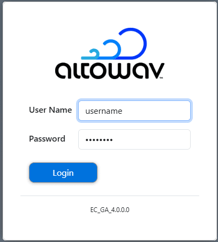
Log into the WebUI as a user with either user or admin privileges.
- Click the User icon ( ).
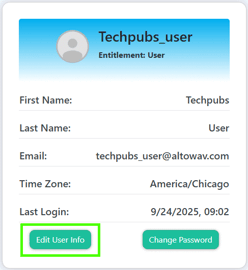
The User window opens.
-
Click Edit User Info.
The Edit User dialog opens.
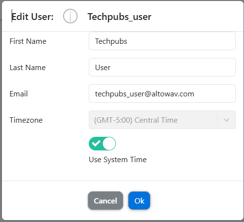
- Type a new First Name, Last Name, and Email.
- Changing the Timezone is useful when the user is monitoring a remote Network that is in a different timezone than the user. By setting the user's timezone to the same timezone as the Network, timestamps in AltoCommand will reflect the timezone of the Network, rather than the timezone of the user.
To set the timezone:
- Click to toggle off Use System Time.
This will instruct AltoCommand to disregard the timezone settings of the user's local PC, and use the timezone configured here instead.
- Select the Timezone.
- Click to toggle off Use System Time.
- Click Ok.
Change user information of any AltoCommand user
To change user information for any user on the system, you must be logged in as a user with admin privileges.
-
Open the AltoCommand WebUI:
In your browser's address bar, type:
https://hostname
where hostname is the fully qualified domain name of the AltoCommand server.
-
Log into the WebUI as a user with admin privileges.
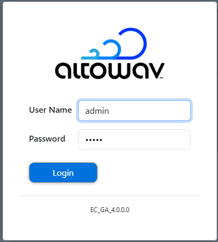
The default username is admin
The default password is admin
- Click Settings > Users.
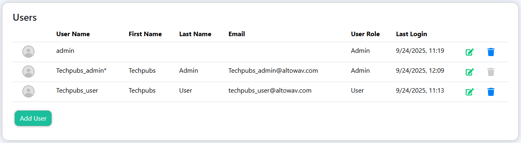
- Click the Edit icon ().
The Edit User dialog opens.
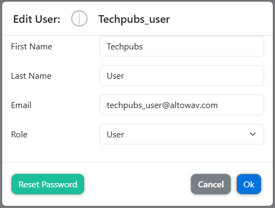
- Type a new First Name, Last Name, and Email.
- Select the user role.
- Click Ok.