
As an alternate to performing DN link auto-configuration, you can configure the devices prior to installation, a process referred to as bench configuration. You can also configure the device after installation by using its management Wi-Fi.
Testing links during bench configuration
By default, GPS is required to initiate links between devices. If you are testing radio links indoors, or in locations with weak GPS signals, the link may not properly form.
To test links, disable GPS synchronization. It is enabled by default.
-
Access the WebUI of the DN. In your browser's address bar, type:
https://hostname
where hostname is the hostname (KB-XX-XX-XX) or IP address of the radio. See Connecting to the AltoPlex radio for more information.
-
Click the login link in the WebUI header to log in as administrator. The default password is admin.

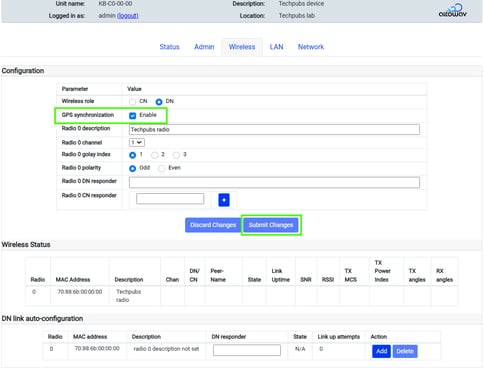
- Click the Wireless tab.
- Uncheck GPS synchronization to disable.
- Click Submit Changes.
Be sure to reenable GPS prior to installation in the field.
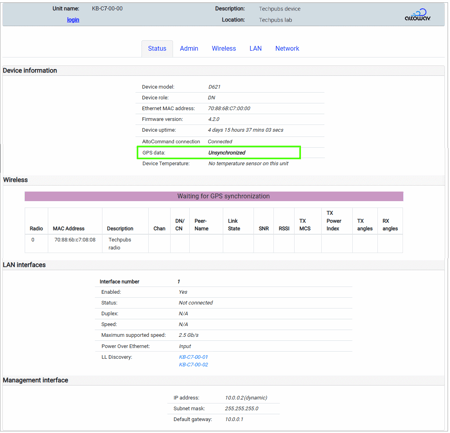
To check GPS status, click the Status tab:
When using bench configuration, the following parameters must be configured on both distribution nodes or the link between them will not be successful:
- Wireless tab, Configuration section:
- Wireless role — Must be set to the default of DN.
- Radio 0 DN responder — Must be set to the MAC address of the other distribution node in the link.
- Channel — Both distribution nodes must be set to the same channel.
- Golay index — Both distribution nodes must be set to the same Golay index.
- Polarity — Must be set to the opposite polarity of the other distribution node.
You can also perform additional configuration as necessary during bench configuration.