
To configure system settings for the AltoReach device:
- Log into the AltoReach device as described in Connect to the AltoReach device.
- In the WebUI, click Configuration > System.
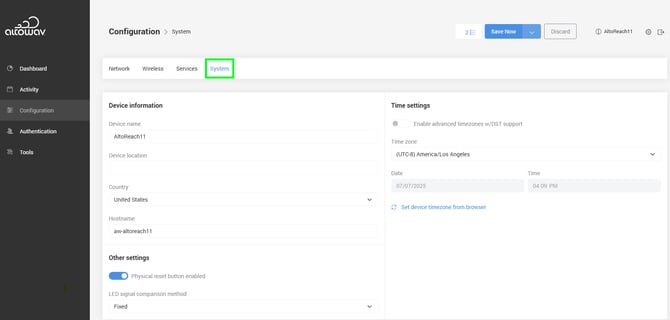
- For Device name, type a name for the device. This is used for Device discovery.
- For Device location, type the location of the device. The location is shown on the device's Dashboard.
- For Country, select the country that the device will be operating in.
- For Hostname, type a hostname for the device. This will be used for DHCP requests when the device is operating in DHCP client mode.
- The Physical reset button is enabled by default. Toggle off to disable. See Factory reset for further details.
- The LED signal comparison method defaults to Fixed. With this setting, the device's signal LED determines connectivity by comparing a connected station's RSSI with fixed thresholds. To use target RSSI instead of fixed thresholds, click Target RSSI.
- Under Time settings:
- Advanced timezones uses an extended list of timezones that includes daylight savings time. Toggle on Enable advanced timezones w/DST support to enable.
- For Time zone, select the appropriate timezone.
- If NTP server is disabled, enter the Date and Time.
- Set device timezone from browser allows you to configure the device's time settings based on your browser setting.
- If NTP server is enabled, the NTP server will be used to set the date and time, and the timezone will be set based on your browser's setting.
- If NTP server is disabled, the device's date, time, and timezone will be set based on your browser's settings.