
You are not required to change the password for the AltoCommand admin user, but it is strongly recommended.
To change password for the admin user, you must be logged in as a user with admin privileges.
-
Open the AltoCommand WebUI:
In your browser's address bar, type:
https://hostname
where hostname is the fully qualified domain name of the AltoCommand server.
-
Log into the WebUI as a user with admin privileges.
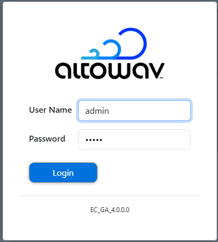
The default username is admin
The default password is admin
- Click Settings > Users.
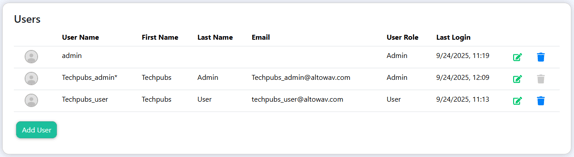
- Click the Edit icon () next to the admin user.
The Edit User dialog opens.
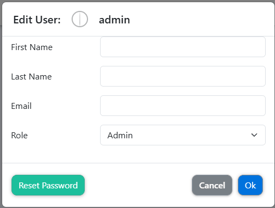
- Click Reset Password.
- Type and confirm the new password and click OK.
The password must be a minimum of eight characters and cannot start or end with whitespace characters.
You can also delete the admin user. Log in as another user with admin privileges and click the Delete icon () next to the admin user.
Do not lose or forget the password of your admin user. The password cannot be reset.