The following tools are available from the Tools page:
Site survey & aiming
Aiming
The aiming tool allows you to receive information about the RSSI signal strength at a faster rate than you will see on the device's dashboard, which helps to align devices in the field for high-quality links.
The aiming tool is only available for devices operating in station or point-to-point mode.
- Log into the AltoReach device as described in Connect to the AltoReach device.
- In the WebUI, click Tools.
- In the Aiming section of the Site survey & aiming page, click Start Aiming.
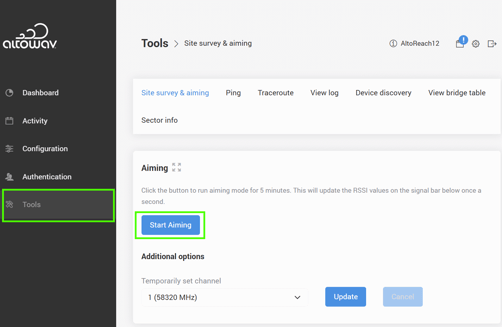
The device will be in aiming mode for 5 minutes. During this time the RSSI values will be updated once per second. As you aim the device, observe the values displayed here to optimize the link.
-
(Optional) You can also temporarily set the station's channel to a static value. This reduces scanning time when the channel of the access point is already known.
- For Temporarily set channel, select the appropriate channel.
- Click Update.
- Click Cancel to reset to using automatic channel mode. The device will reset automatically after 20 minutes.
Site survey scan
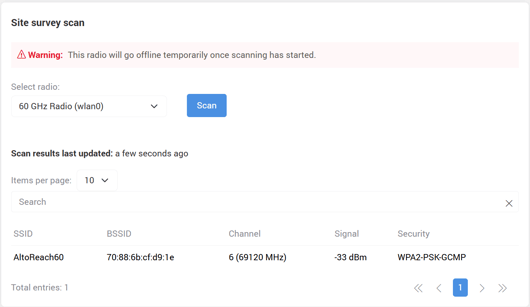
The site survey scan allows you to view a list of other Tachyon 60GHz devices broadcasting in the nearby area. This tool is only available when operating in station or point-to-point slave modes.
The site survey scan will temporarily cause your radio to become unreachable. It will come back automatically when scanning is complete.
- Log into the AltoReach device as described in Connect to the AltoReach device.
- In the WebUI, click Tools.
- In the Set survey scan section of the Site survey & aiming page:
- Select the radio.
- Click Scan.
By default, the results display ten radios per page.
Ping
To perform a basic ping from the device:
- Log into the AltoReach device as described in Connect to the AltoReach device.
- In the WebUI, click Tools.
- Click Ping.
- (Optional) Select whether to use an IPv4 or IPv6 IP address for the ping.
- For IP address or host name, enter the IP address or hostname of the network resource to ping.
- (Optional) For Ping iterations count, type or use the slider bar to define the number of times that the network resource will be pinged.
- Click Ping.
Traceroute
To perform a traceroute from the device:
- Log into the AltoReach device as described in Connect to the AltoReach device.
- In the WebUI, click Tools.
- Click Traceroute.
- (Optional) Select whether to use an IPv4 or IPv6 IP address for the traceroute.
- For IP address or host name, enter the IP address or hostname of the network resource to route to during the traceroute operation.
- Click Traceroute.
Device discovery
Use the device discovery tool to discovery other devices on your network. You must have device discovery enabled. See Services for information about how to enable or disable device discovery.
- Log into the AltoReach device as described in Connect to the AltoReach device.
- In the WebUI, click Device discovery.
- Click Refresh to refresh the list.
View bridge table
Use the bridge forwarding table to view the MAC addresses and associated interfaces in the device uses to forward traffic.
- Log into the AltoReach device as described in Connect to the AltoReach device.
- In the WebUI, click View bridge table.
- Click Refresh to refresh the list.
Sector info
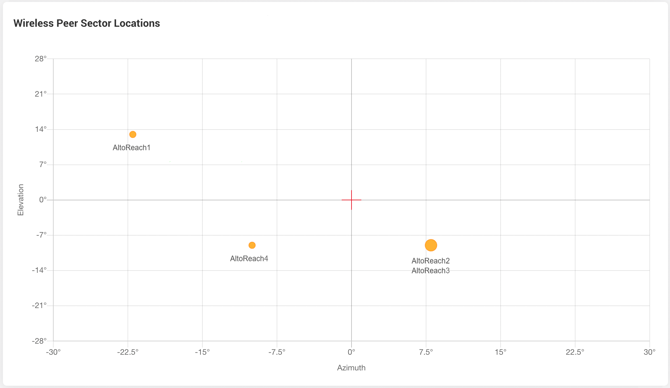
The sector tool provides a visual indicator of how each peer is connected to the current device, which can help you determine how close connected peers are to boresight.
- The red crosshairs indicator represents boresight for the device.
- When you click on a connected peer's sector ID in the Dashboard, you will only see that individual sector on the sector tool. You can click the "View all" button to view all connected peers.
- When multiple peers are connected on the same sector, the point will grow larger, a list of up to the first 3 devices connected on that sector will be shown.
- It's possible for a peer to be connected on different sectors for RX and TX. When this happens, a peer will be represented by two dots, each with an "(RX)" or "(TX)" label following the peer's name.