
To add a new user:
-
Open the AltoCommand WebUI:
In your browser's address bar, type:
https://hostname
where hostname is the fully qualified domain name of the AltoCommand server.
-
Log into the WebUI as a user with admin privileges.
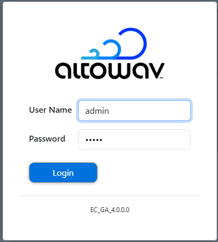
The default username is admin
The default password is admin
- Click Settings > Users.
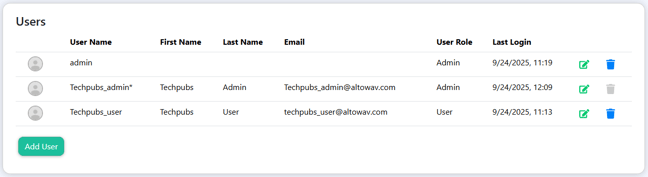
- Click Add User.
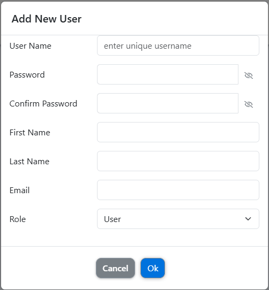
- Username:
- Must be unique (no other users with the same username).
- Minimum of four characters.
- Maximum of 256 characters.
- No whitespace characters.
- Password:
- A minimum of eight characters.
- Cannot start or end with a whitespace.
- First Name and Last Name: (Optional) The name of the user.
- Email: (Optional) The user's email address.
- Role:
- User: Read-only access to AltoCommand, with the exception that they can edit their own user information and change their password.
- Admin: Can perform write operations within the current instance of AltoCommand.
- Username:
-
Click OK.
Delete an existing user
To delete an existing user, in the Settings > Users tab, click the Delete icon ().